How to pay with crypto
New to cryptocurrency? Start with step 1 — getting a wallet app. If you already have crypto, jump to step 3.
1. Get a wallet app
There are many wallet apps to choose from. Here we use Trust Wallet as an example: get it from the App Store, Google Play or as a browser extension.
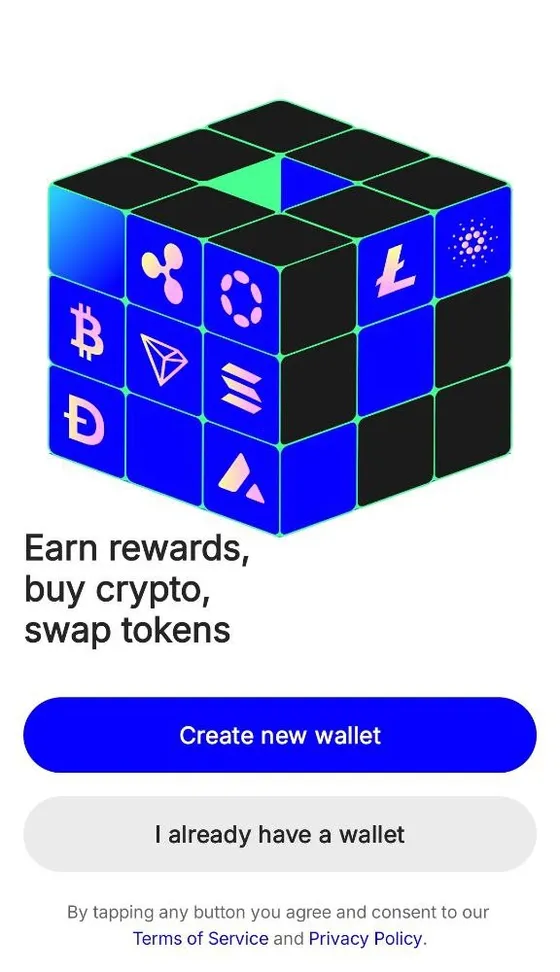
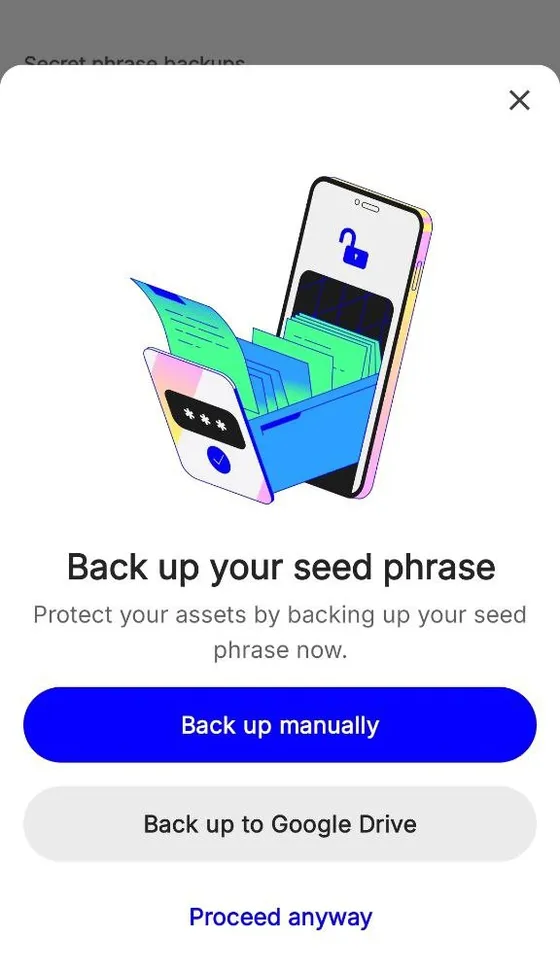
Then create your first wallet as the app guides you. Back up your secret phrase — without it a lost phone means a lost wallet.
2. Buy crypto in the wallet
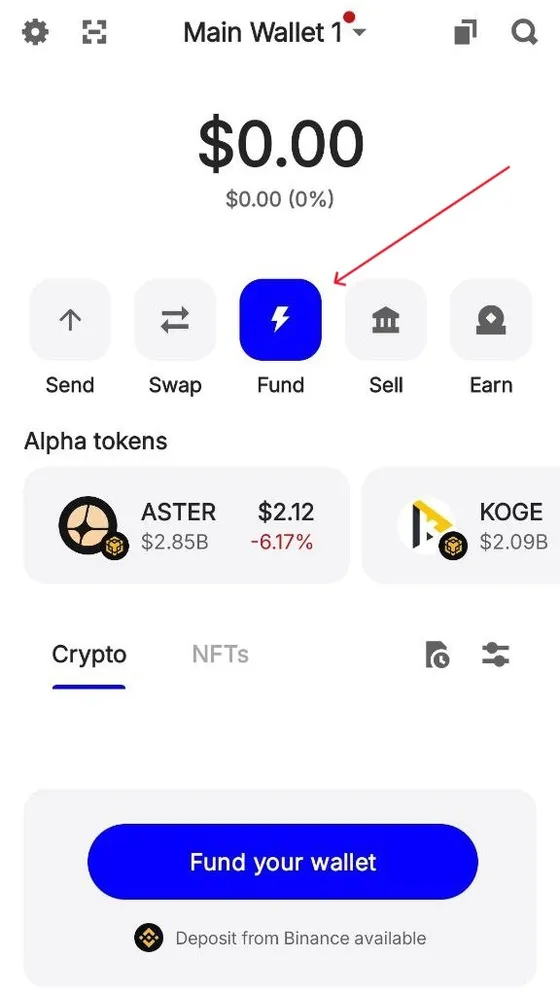
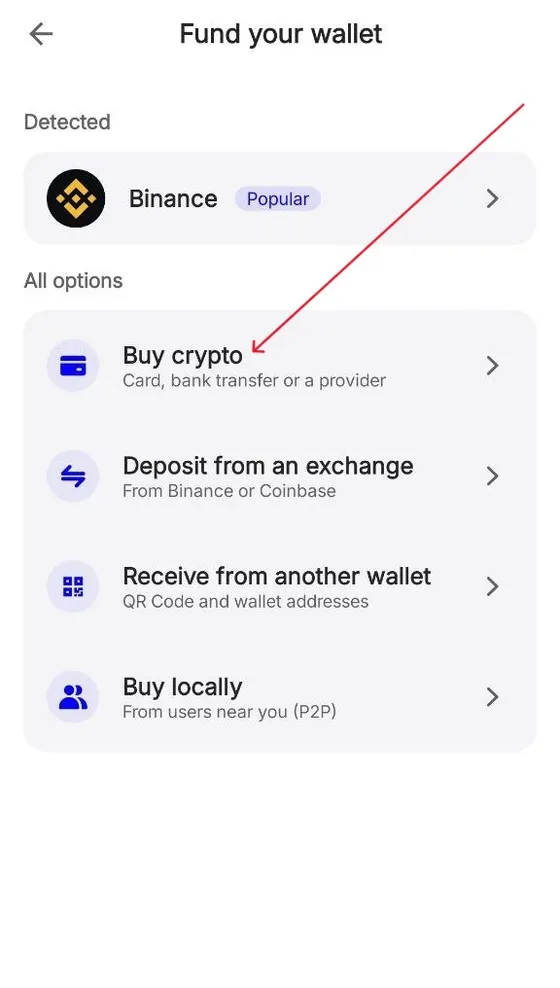
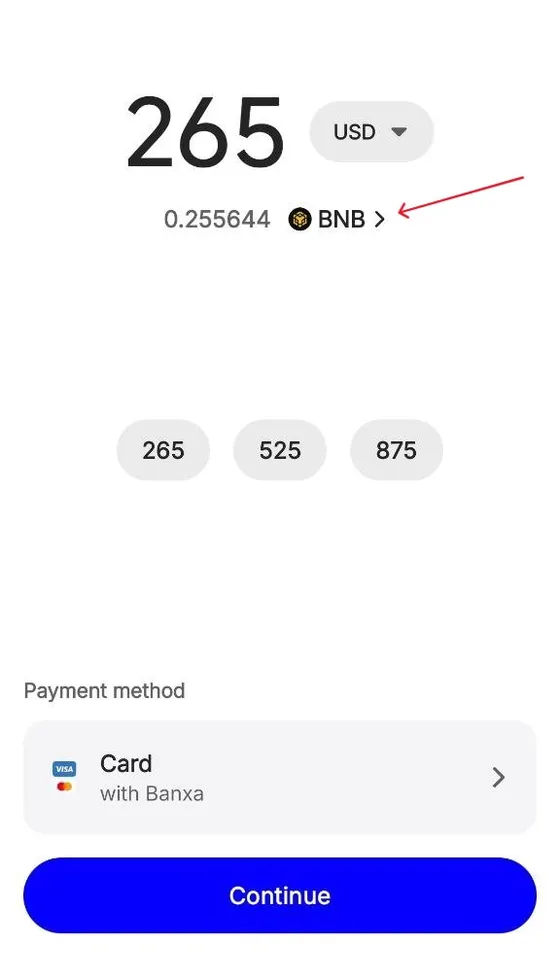
On the wallet's home screen tap Fund, then Buy crypto, enter the amount in your currency and choose the coin to buy.
The price depends on your region and the amount, and the seller may ask you to verify your identity (KYC) the first time.
We recommend BNB on BNB Smart Chain (BEP-20): transfers arrive in seconds and the network fee is a few cents.
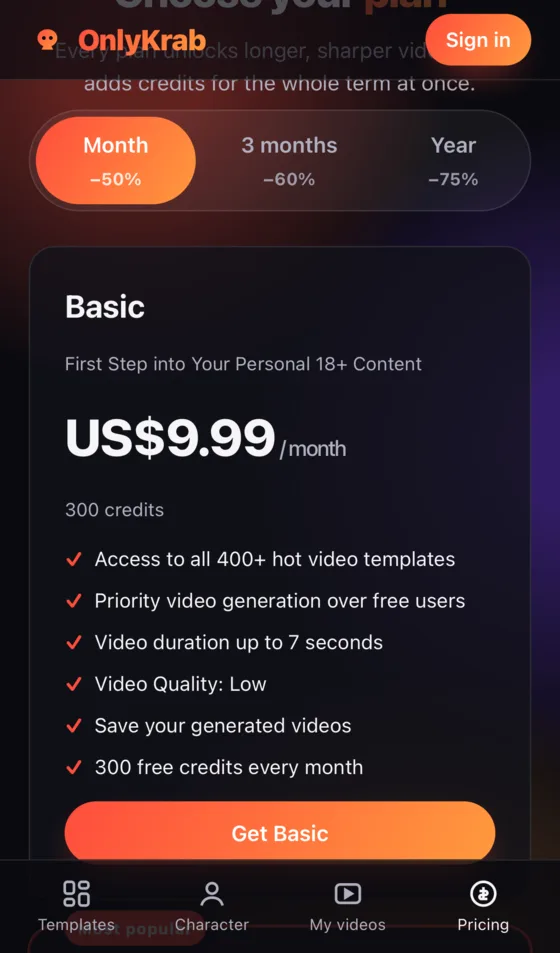
3. Start the order on OnlyKrab
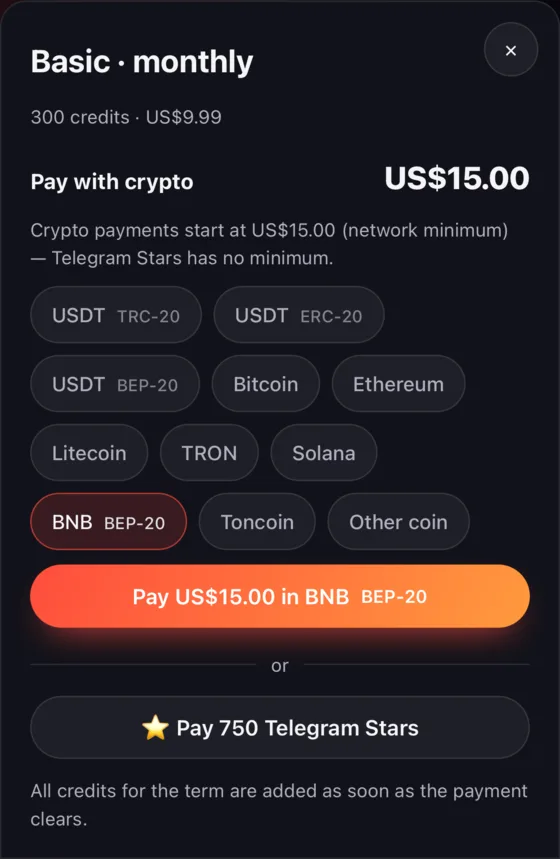
Open Pricing and choose a plan or a credit pack. In the payment window, tap the coin you are going to pay with — for BNB that is BNB BEP-20 — then tap Pay … in BNB BEP-20.
Crypto payments start at $15 (the networks' minimum) and include a small processing fee; the window shows the exact amount. Telegram Stars has no minimum — see paying with Stars.
4. Send the payment from your wallet
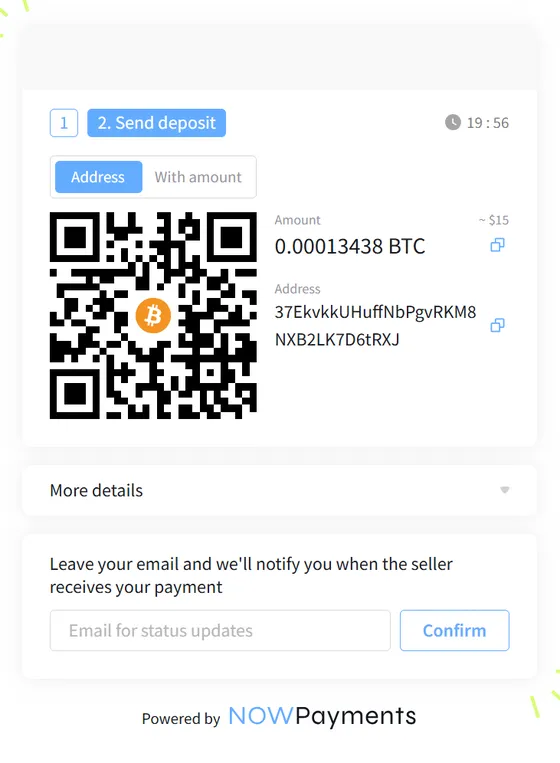
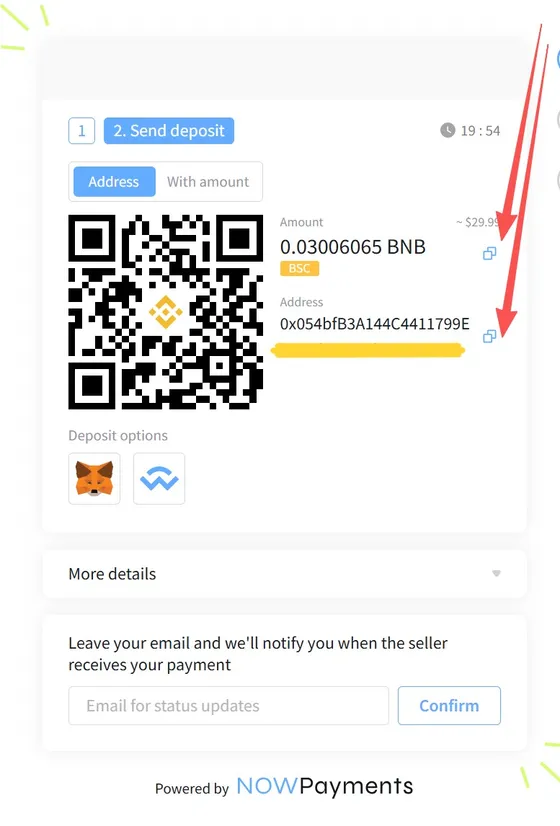
The NOWPayments page opens already set to the coin you picked and shows the exact amount and the address to send it to. Copy both.
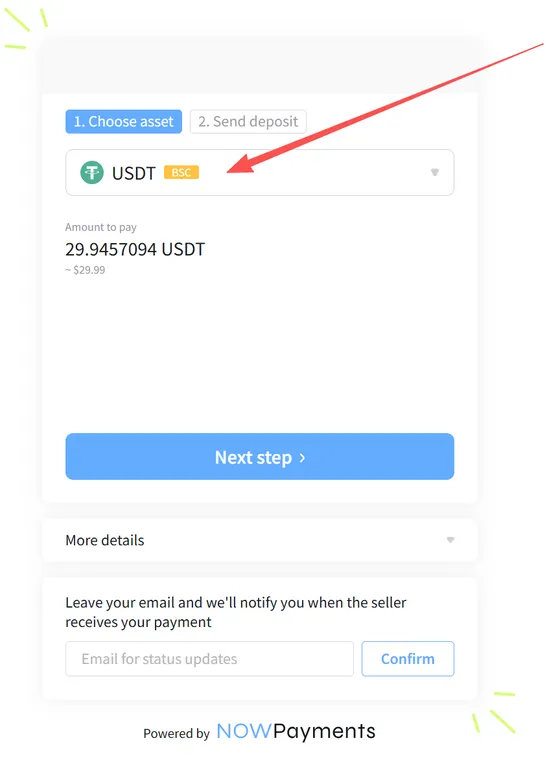
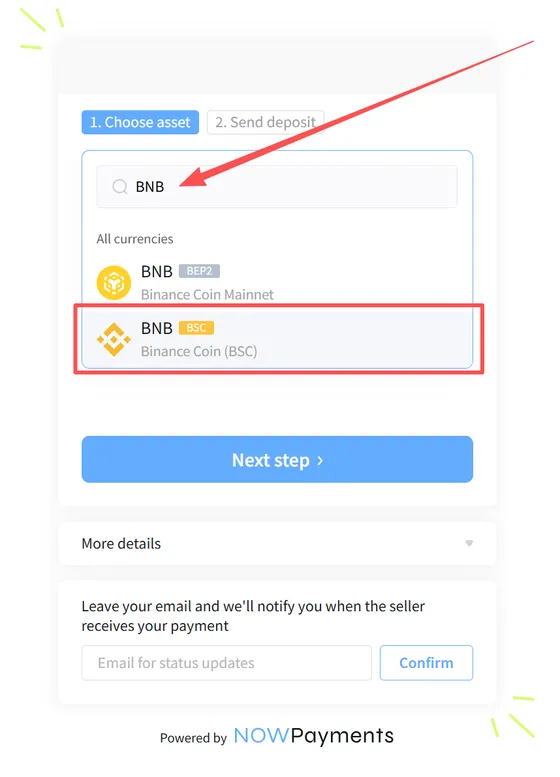
If you tapped Other coin, the page first asks you to choose the coin and its network yourself — pick exactly the one your wallet will send, then tap Next step.
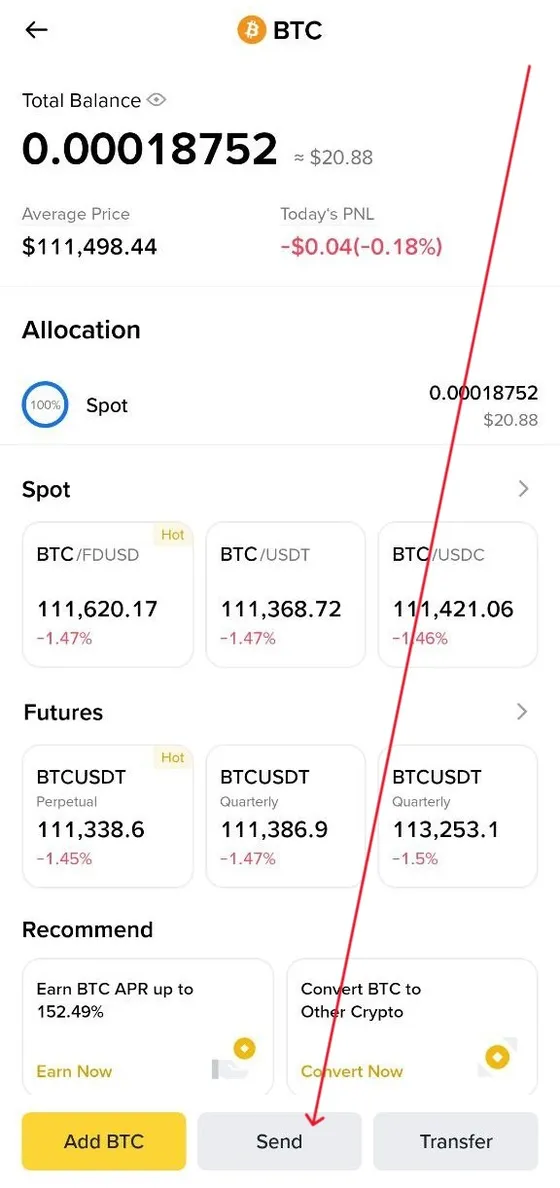
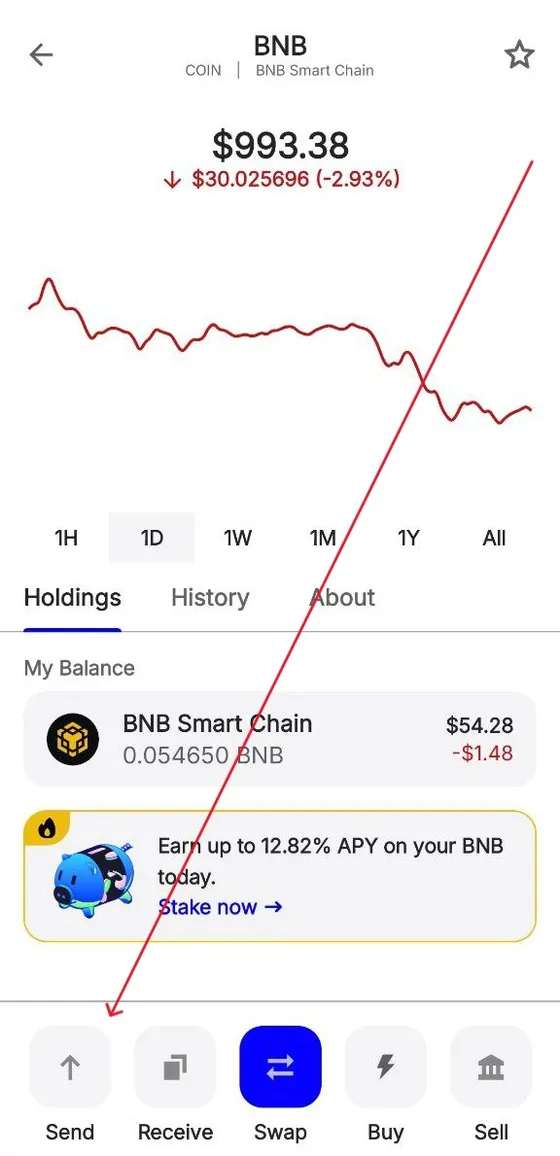
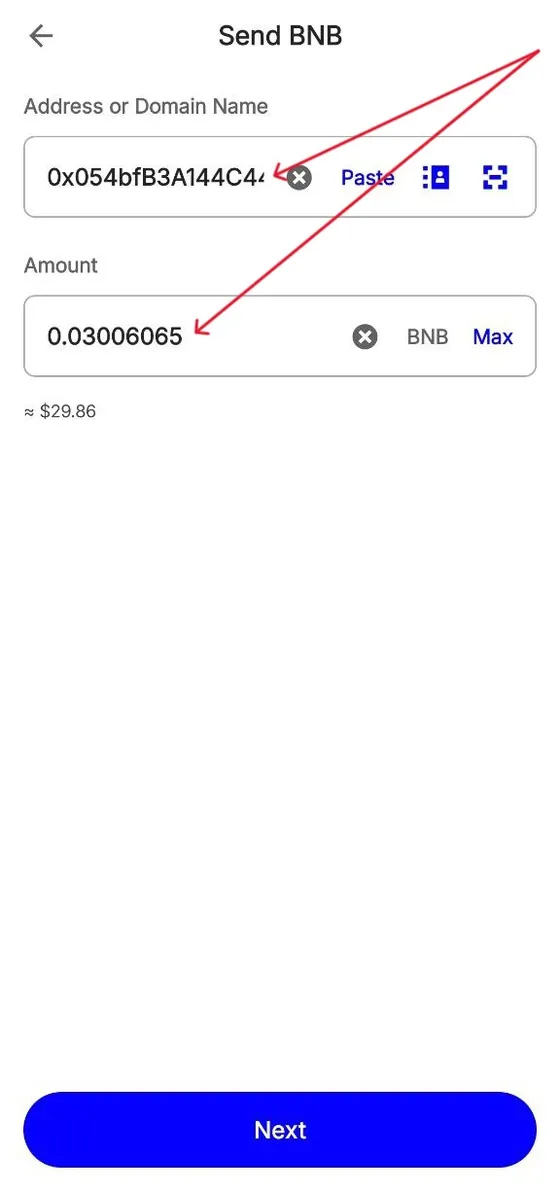
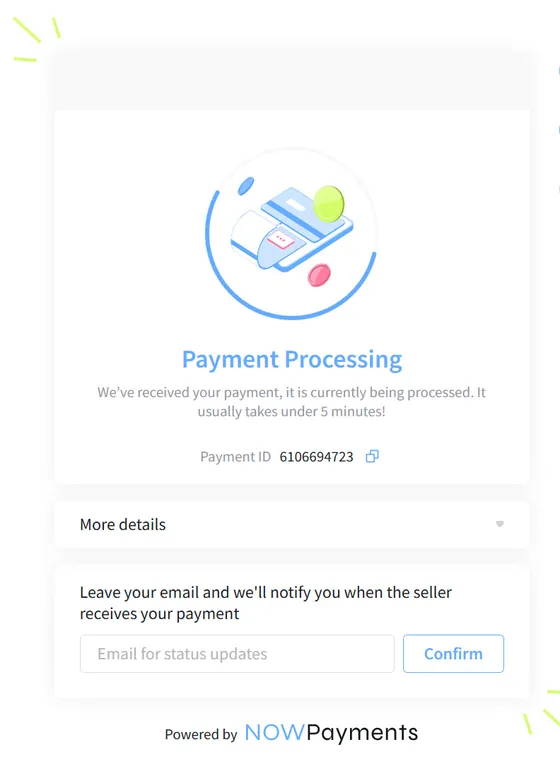
In Trust Wallet open the coin you are paying with (e.g. BNB), tap Send, paste the address and the amount and confirm. The NOWPayments page switches to Payment processing, and the credits land on your OnlyKrab account by themselves once the network confirms the transfer — usually within a few minutes.
Tips
- Same coin, same network. Most stuck payments are a different coin, or the right coin on another network — for example USDT sent over Ethereum to a TRC-20 address. The network is written on the coin you tapped and on the NOWPayments page.
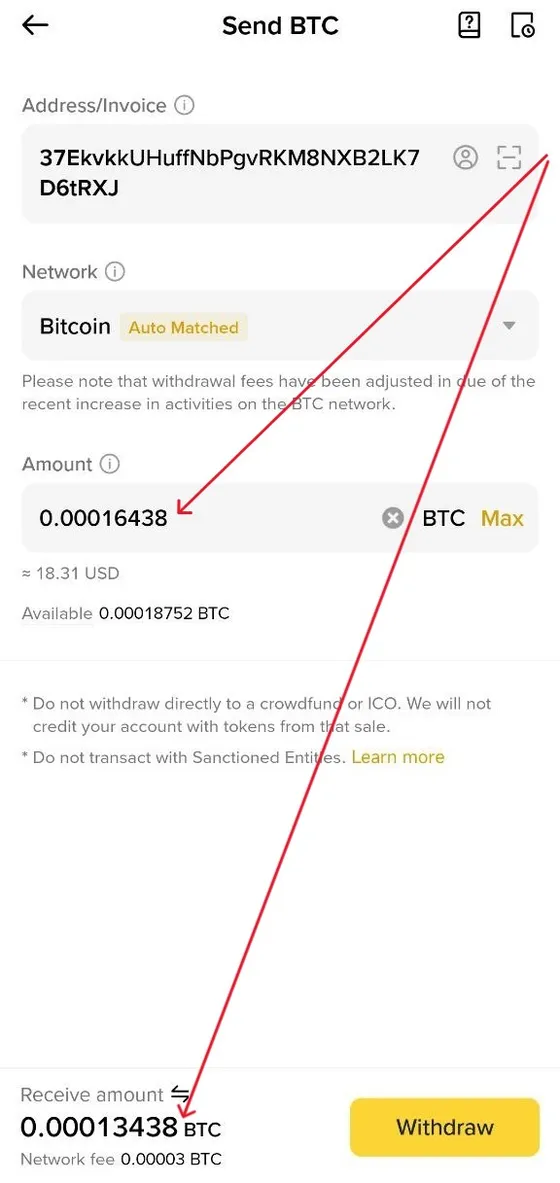
- The amount that arrives must match the amount on the page. Some wallets and exchanges take the network fee out of the amount you send, and the order then waits as “partially paid”. Trust Wallet adds the fee on top, so this does not happen there.
- One order, one address. If the timer on the NOWPayments page runs out, start a new order on OnlyKrab instead of sending to the old address.
- Something went wrong? Write to support@onlykrab.app with a screenshot, the Payment ID from the NOWPayments page, the address you paid to and the transaction hash (Tx hash) from your wallet.
Bonus: paying from an exchange
Exchanges such as Binance often sell crypto at a better rate than wallet apps. Binance has a video on getting started. Once you have crypto there, start the order from step 3 and pay with a withdrawal from the exchange to the address on the NOWPayments page.
Exchanges usually take the withdrawal fee out of the amount, so add the fee to the amount you withdraw — what arrives has to match the amount on the NOWPayments page.