How to pay with Telegram Stars
The payment happens in our Telegram bot @onlykrab_ai_bot: you pick what to buy on the site, the bot sends you a pay button, and the credits arrive by themselves.
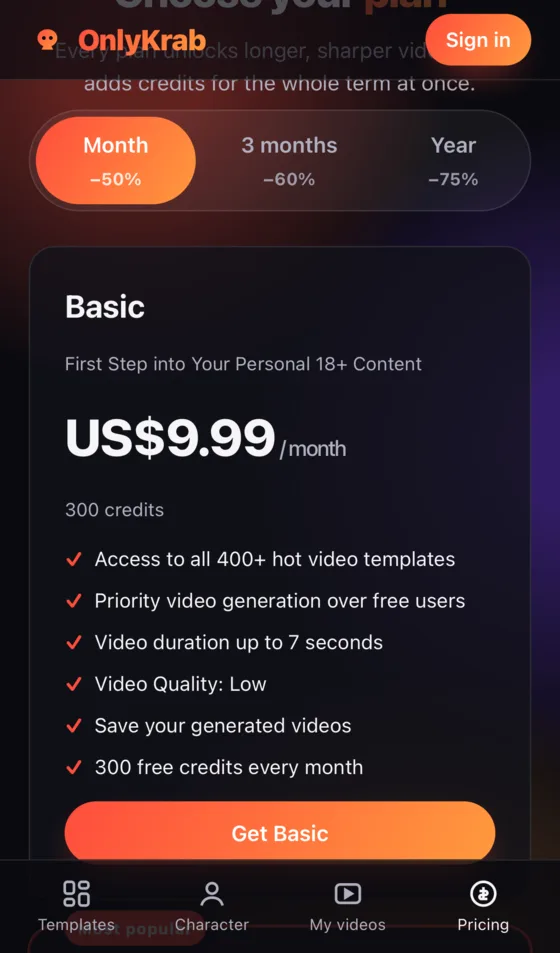
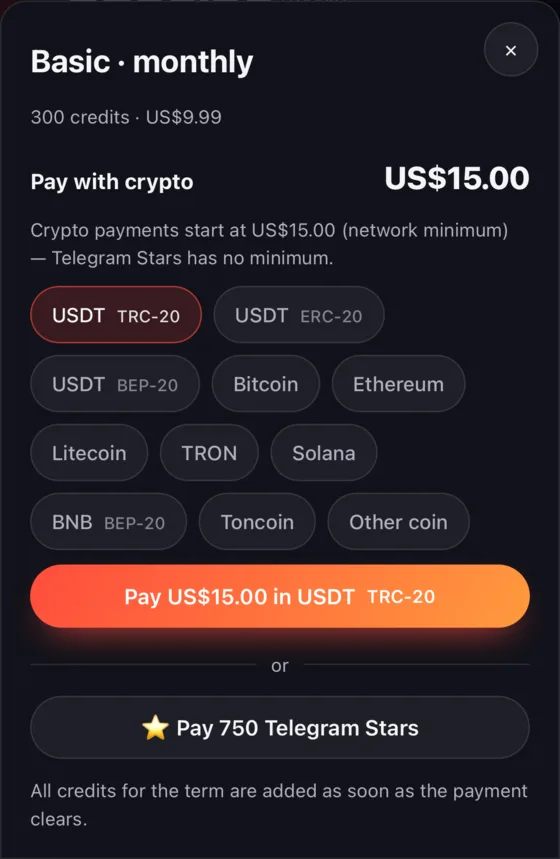
- Pick a plan or credits on OnlyKrab and choose Telegram Stars — the bot opens in Telegram with your order.
- Tap Pay N Stars in the bot. Not enough Stars? Top up first with the button right above it (card, Apple Pay, Google Pay).
- Credits are added to your OnlyKrab account automatically, usually within seconds.
1. Pick what to buy
Open Pricing and choose a plan or a credit pack. In the payment window tap ⭐ Pay N Telegram Stars. Telegram opens a chat with our bot.
2. The bot sends your order
The bot sends one message with your order, the price in Stars and two buttons. If the chat is empty and you only see Start at the bottom, tap it — the message arrives right away.
1️⃣ Top up your Telegram Stars balance first if you don't have enough.
2️⃣ Then tap "⭐️ Pay 750 Stars" to finish your purchase.
3️⃣ Credits are added to your account on the website automatically after payment.
- 💲 Top up Stars balance — only if you do not have enough Stars. It opens Telegram's own top-up screen.
- ⭐️ Pay N Stars — this button is the actual payment for your order.
Stars you buy stay in your Telegram wallet until you spend them. If you only top up, your OnlyKrab balance does not change — go back to the bot's message and tap Pay N Stars to finish.
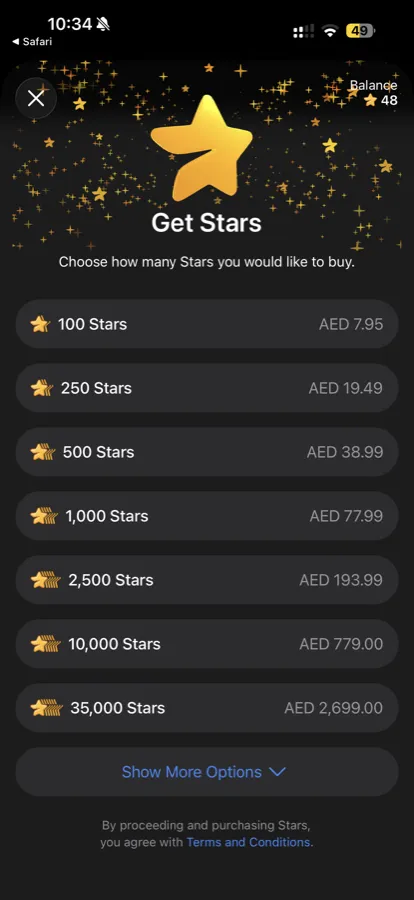
3. Top up Stars — only if you do not have enough
The top-up button opens Telegram's Stars screen. Choose an amount that covers your order and pay with a card, Apple Pay or Google Pay. As soon as Telegram confirms, return to the chat with our bot — this is where most people stop, and the purchase is not finished yet.
4. Tap “Pay N Stars” in the bot
Telegram asks you to confirm the payment — confirm it and the purchase is done. The bot replies ✅ Payment received with your new balance, and the credits are already on your OnlyKrab account; refresh the page if it was open.
If the payment window opens straight away
On some accounts Telegram shows the Stars payment confirmation immediately, without the bot chat. Nothing is wrong — confirm it and the purchase is done; steps 2–4 simply do not apply.
Did my payment go through?
1. Check where your Stars went. In Telegram open Settings → My Stars and look at the latest transaction:
- Paid to @onlykrab_ai_bot — the payment reached us. Refresh the page; credits are normally there within seconds.
- Paid to Google Play, the App Store or @PremiumBot — you only bought Stars. They are still in your Telegram wallet: go back to the bot's message and tap the pay button.
- No transaction — the payment never completed and nothing was charged. Start the purchase again.
2. Check your credit activity. Your Account page lists every top-up and every generation under Recent credit activity.
Tips
Buying Telegram Stars on Google Play, the App Store or in Telegram does not give you OnlyKrab credits on its own. Stars are Telegram's currency and sit in your Telegram wallet until you spend them on your order in our bot. A charge from “Google Play” or “App Store” on your statement paid Telegram for Stars — not OnlyKrab.
- Already have enough Stars? Ignore the top-up button and tap Pay N Stars right away — it is a single tap.
- The pay button belongs to one order and stops working after 48 hours. If the bot says the link has expired, start the purchase again on the site and the bot will send a fresh button.
- Card not accepted when buying Stars? Try Apple Pay or Google Pay in the mobile Telegram app, or Telegram Web.
- The price in Stars can be a little higher than the dollar price on our site, depending on your region. We do not charge extra — the difference covers Telegram's own fees, as its documentation explains.
- Open the bot link in your own Telegram account. If it is opened from another account first, the order goes there — start the payment again from the site on your device.
- If buying Stars failed but your card was charged, that charge is with Google Play, the App Store or Telegram — ask whoever charged you for a refund. We can only credit you once Stars reach our bot.
- Still stuck? Write to support@onlykrab.app with a screenshot of My Stars.